Create a reservation
When a book is already on loan to someone and another member wants to reserve it, you create a reservation: as soon as the book comes back, it will be set aside for the next member.
From the book's page
- Open the record page of the requested book
- Click Reserve
- Identify the member (scan their card or type their name)
- Validate
The reservation appears in the Active reservations list on the book's page.
See all reservations
From the top navigation bar, click Reservations.
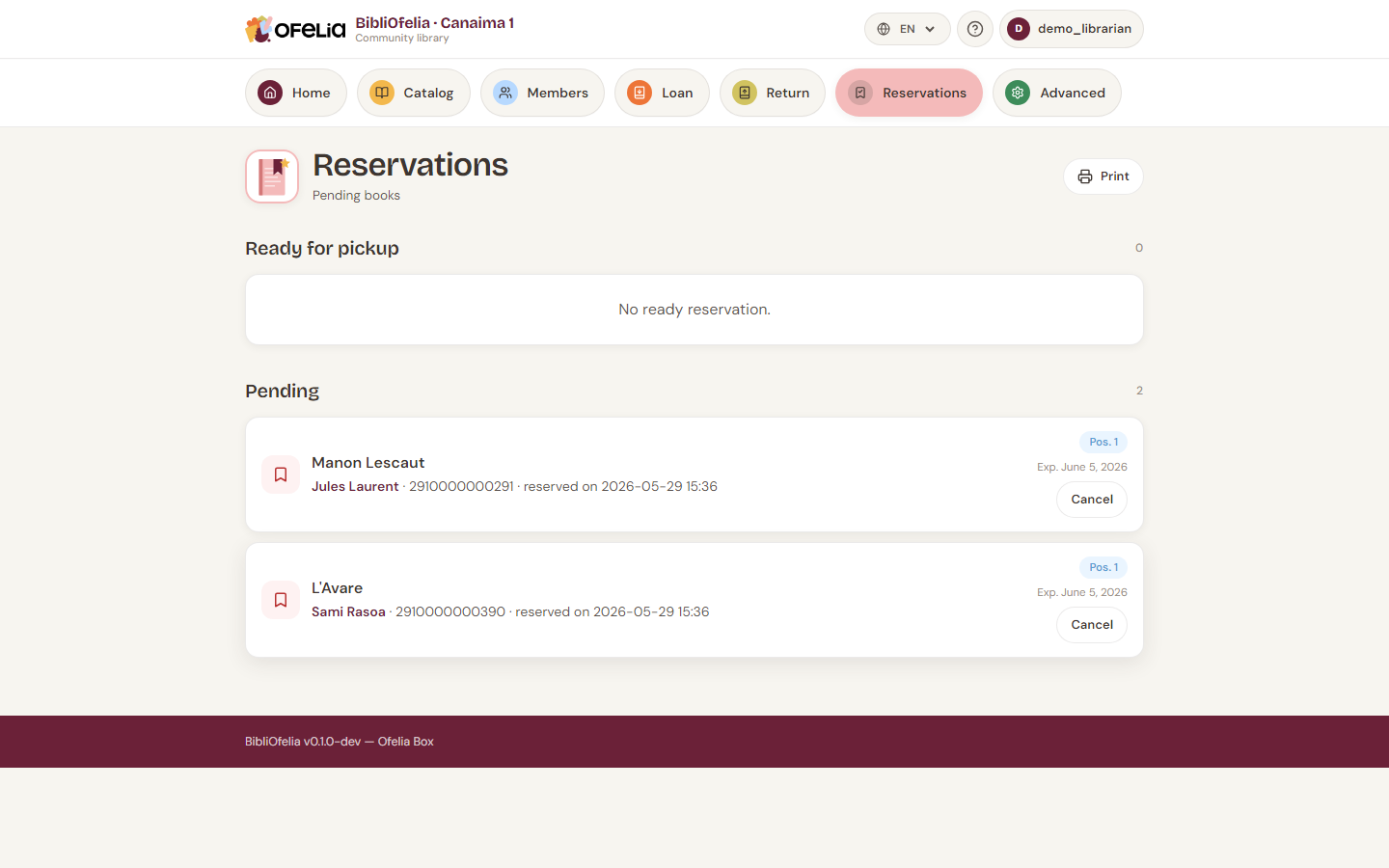
The page lists all current reservations with:
- The reserved book
- The waiting member
- The creation date
- The status: Pending, Ready for pickup, Fulfilled, Expired
Queue: several reservations on the same book
If several members reserve the same book, BibliOfelia automatically manages the queue: the first to have reserved is served first when the book returns.
The book's page shows the member's position in the queue ("reservation 2 of 3").
Once the book is back
When the book is returned, BibliOfelia automatically updates the first reservation to Ready for pickup. You then see:
- An alert on the Return page at scan time
- A notification in the Notifications to do section of the dashboard
See the next steps: Notifications and follow-ups, then Pickup and expiration.
Cancel a reservation
If the member no longer wants the book, open the reservation and click Cancel. The book becomes available again (or moves to the next member in the queue).