Enrolling a new member
Enrolling a new reader takes less than a minute. All you need is their name and category.
Open the form
Two paths to open the enrollment form:
- From the dashboard, click Enrollment (shortcut)
- From Members, click + New member
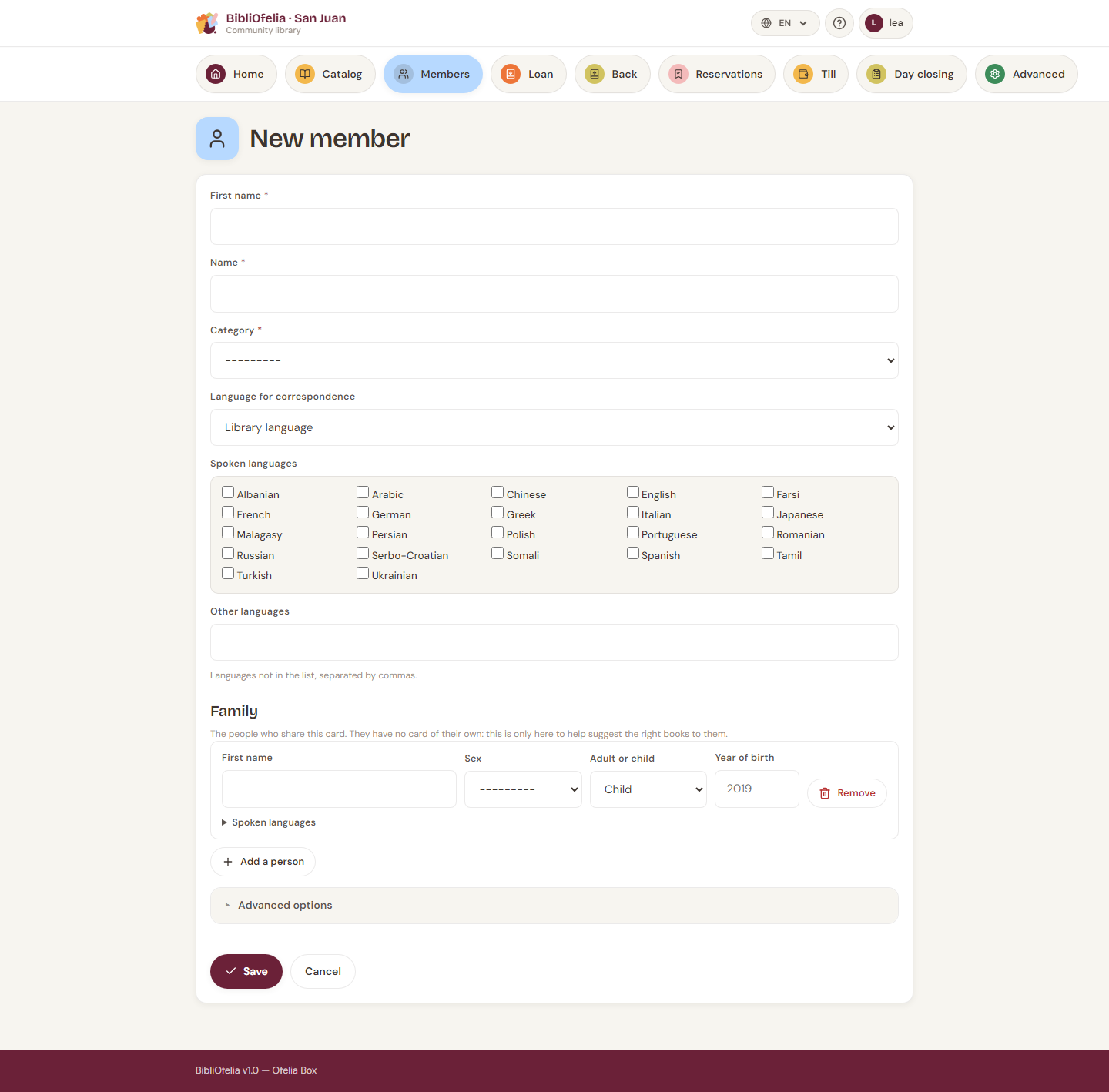
Fill in the form
- First name and Last name (required)
- Category — Adults, Children, Teens… (configured by the administrator). The category sets the default loan duration and the maximum number of simultaneous loans.
- Phone, email (optional — email is used for invoices and reminders)
- Address split into: street, extra line, postcode, city, state, country (all optional)
- Enrollment date — today by default
- Expiration date — calculated automatically from the category's validity (often 1 year), editable
- Comment — under Advanced options, up to 500 characters
Member photo (optional)
You can add a photo of the member's face. It will appear on the profile and the printed card. Useful to quickly identify children or new readers.
Spoken languages
Below the category, a box lists 22 languages. Tick all the ones the person speaks — there is no limit. Anything missing from the list goes into Other languages, separated by commas.
Not to be confused with Language just above: that one says which language BibliOfelia should write to them in (reminders, letters). Spoken languages are there to welcome them and suggest the right books.
The family
The Family section lists the people who share this card: partner, grandparents, children. For each one: first name, sex, Adult or child, and the languages they speak (the same box, folded under "Spoken languages").
For a child, enter their year of birth: BibliOfelia works out the age and keeps it up to date on its own. For an adult, there is nothing else to fill in.
Click Add a person for one more line, Remove to take one away. A line with no first name is simply ignored: you can leave the blank line you are offered.
These people are not members
They have no card and no loans in their name. This information is only used to guide reading suggestions. If you want one of them to borrow books themselves, enroll them as a full member.
Their first names appear on the printed member card.
Save
Click Save. BibliOfelia automatically assigns:
- A unique card number (starts with 291 — this is the card's barcode)
- A membership invoice if the category has a fee (0 = free, nothing is issued). See Fees and member categories.
You can then move on to printing the card.
You arrive on the member's profile, where you can immediately print the card or register a first loan.
What's next?
- Print the member card
- Lend a book
- If needed, add a photo or notes via the Edit button on the profile
Special case: card lost before enrollment
If a member loses the card right after enrollment (before printing), nothing to do: just reprint the card with the already-assigned number. The card only physically exists at the moment of printing.