Lending a book
Registering a loan is the most frequent action of the day. With a barcode scanner or your device's camera, it takes less than 10 seconds.
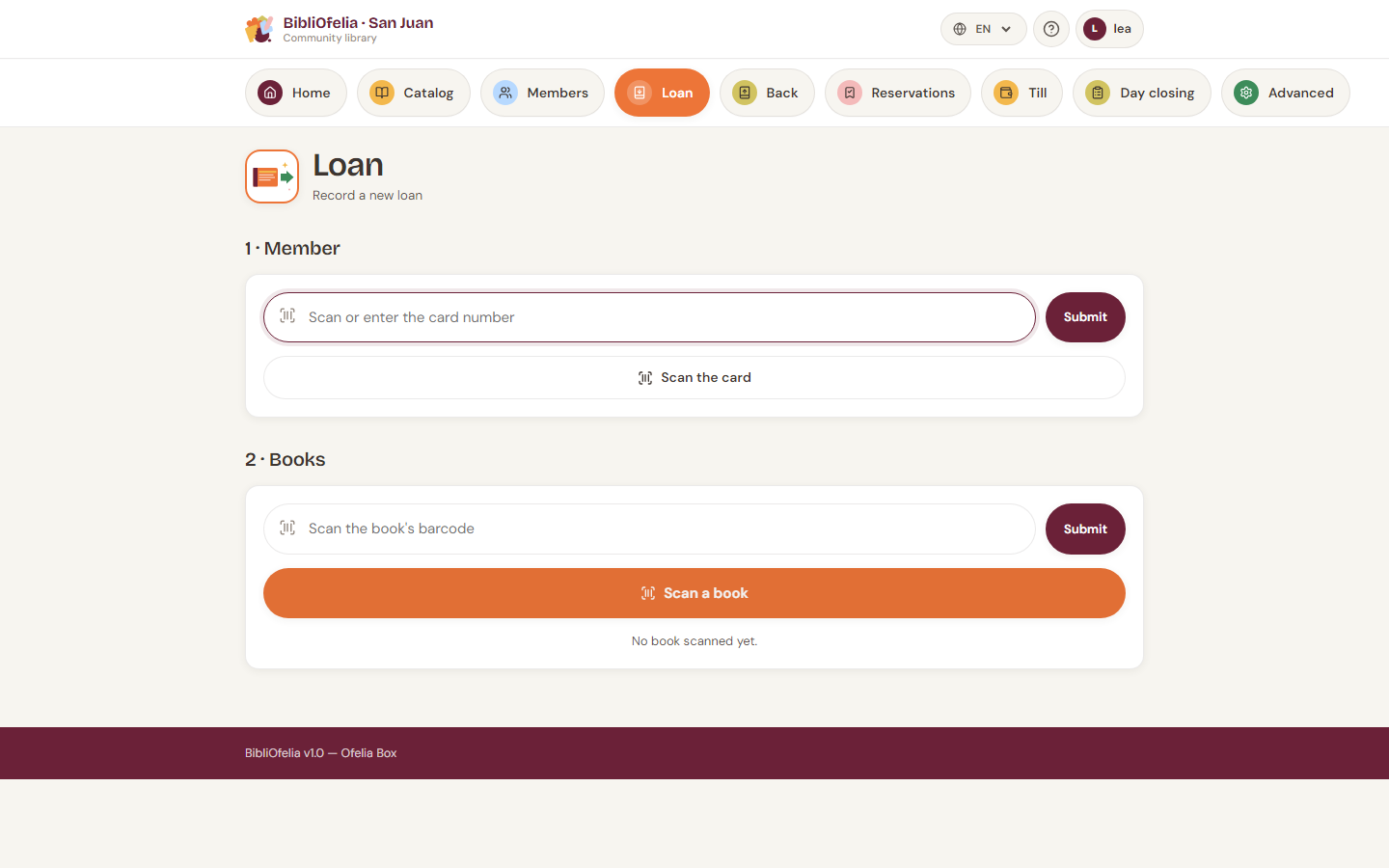
The Lend page is organized in three steps that you follow in order: first the member, then the book(s), and finally the confirmation.
Before you start
To open this page quickly from anywhere in the site, click the orange Lend tile in the top navigation bar.
Step 1 — Identify the member
The member presents their card. You have two ways to find them:
- With a scanner: scan the card's barcode. The member is identified immediately, you move to step 2.
- By keyboard: type the card number (the digits at the bottom of the card) into field ➊, then press Enter or click Validate.
You can also click ➋ Scan the card to open your device's camera and read the card barcode — handy if the scanner is not plugged in (see Scanning with the camera).
Member doesn't have their card?
No problem: use the global search at the top of the site (type the member's name) to open their profile, then click New loan from their profile.
Once the member is identified, BibliOfelia displays their name and category. If alerts exist (expired card, too many active loans), they appear in yellow just below the name — read them before proceeding.
An old card (after a « Replace card ») is still recognised: the screen says so, and that is the moment to print the new one. See Member card.
Step 2 — Scan the book
Enter the book(s) to lend the same way:
- Scanner: scan the book's barcode. The book is added to the basket and the field clears for the next one.
- Keyboard: type the Ofelia code (the digits under the barcode on the label) into field ➌, then Enter or Validate.
- Camera: click the orange ➍ Scan a book button to open your device's camera.
You can chain several books for the same member — each scan adds a line to the basket. Each line shows the title, the author and both codes of the copy (Ofelia and, if any, the external code). To remove a book from the basket, click the cross on the right of its line.
Common edge cases
- Book already on loan: a red message appears. Check it is not a duplicate scan before insisting.
- Member reached their limit: the member's category sets a maximum number of simultaneous loans (default: 5 for an adult, 3 for a child). Ask the member to return a book, or adjust the category from their profile.
- Card expired: the loan is blocked until the card is renewed. See Renewal and expiration.
Step 3 — Confirm
When all books are in the basket, the section 3 · Confirm appears at the bottom. You can add a free-form note (optional), then click the big orange Lend N books button.
BibliOfelia records the loans, automatically calculates the return date (21 days later by default) and returns to an empty form ready for the next member.
How much time is left?
The member profile permanently displays active loans with due dates. When a loan approaches its limit or passes it, it appears in the Follow-ups section of the dashboard.
Going further
- Register a return — when the member brings books back
- Renew a loan — extend the return date
- Scanning with the camera — how the site's camera works