Member card
Each member has a physical card with a barcode. It identifies them quickly during a loan.
Print a single card
From the member profile, click Print card (62 mm): the Brother QL roll PDF opens in a new tab.
For an A4 sheet (several cards), go to Advanced → Printing → Cards.
Print several cards at once
For new enrollments, it is more efficient to batch:
- Open Advanced → Printing → Cards
- Filter the members to print (for example, "enrolled this month")
- Tick the wanted cards
- Click Generate PDF
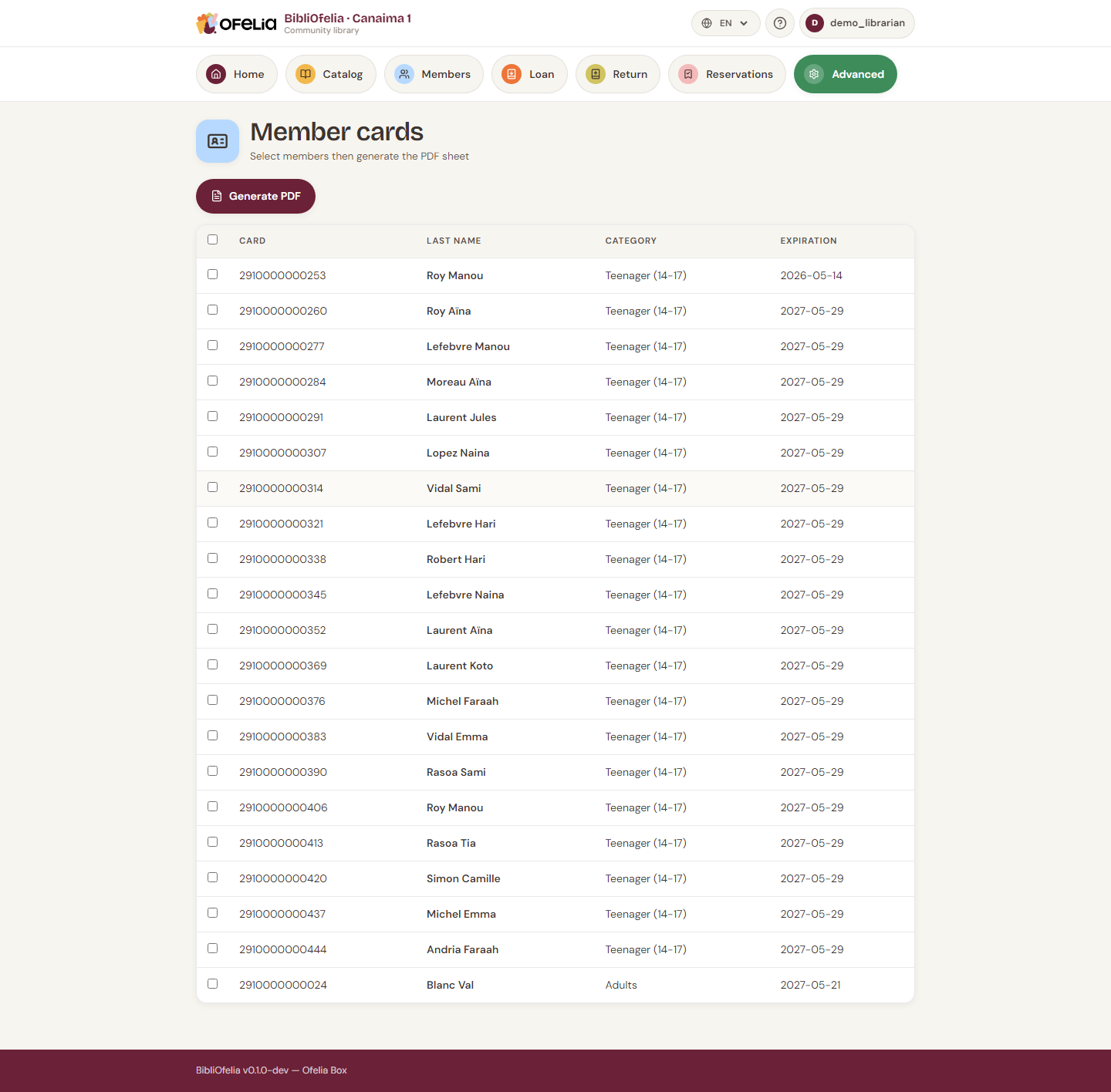
The PDF opens in a new tab: you can print it directly or save it for later.
Card format
BibliOfelia cards are standard business card size (85 × 54 mm) with:
- OFELIA logo as watermark
- Member photo (top left, if provided)
- Last name and first name in large font
- Card number and EAN-13 barcode
- Expiration date
- A flag indicating the member's preferred language
The background is cream, consistent with the OFELIA brand.
Which paper to use?
For a sturdy card, print on 200-300 g/m² paper then laminate. You can also print on sticky labels to stick onto pre-printed blank cards.
Replace a card
If a member loses their card, you must assign a new number (not reprint the old one) to invalidate the lost card:
- Open the member's profile, then Edit
- Click Replace card (next to the card number)
- Confirm the warning
A new number is assigned and the old one is "retired": it will never be reassigned to another member (see Common cases: lost card).
Then print the new card normally.
The family on the card
If the member has people attached to their card (see Enroll a member), their first names are printed in a "Family" column on the right of the card.
That is what lets you see at a glance, at the desk, who may borrow with this card — without opening the profile.
If there are more names than the card can show, the list ends with "…". The member's profile shows them all.