Dashboard tour
The dashboard is the home page of BibliOfelia. It brings together everything you need day to day.
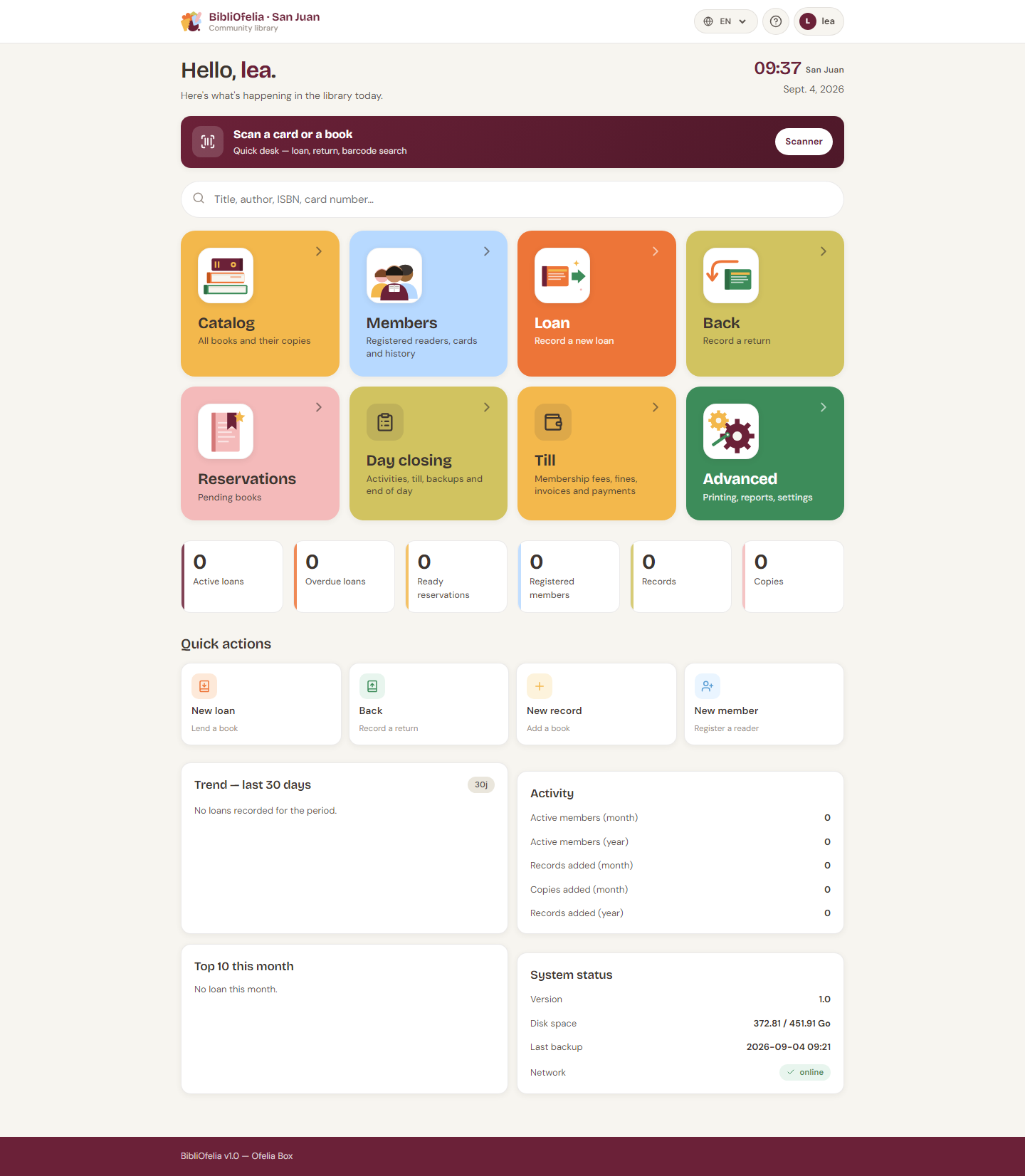
The big tiles at the top
The three large colored tiles are the main sections:
- Catalog (orange) — all books and their copies
- Members (blue) — enrolled readers, their cards, their history
- Advanced (green) — printing, reports, settings
The Lend and Return tiles are also reachable from the top navigation bar on every page: they are the most frequent actions, always one click away.
Two more tiles at the same level:
- Cash desk — till balance, invoices, payments (see Cash desk and invoices)
- Closing — end of service: activities, today's till, emails, backup, Box shutdown (see End-of-day closing)
The counters
Below the tiles, six numbers summarize the current activity:
- Active loans — books currently borrowed
- Overdue loans — loans past their return date
- Reservations ready — reserved books that have arrived
- Members enrolled — total active cards
- Records — book entries in the catalog
- Copies — physical copies in the library
Quick actions
Four shortcuts for secondary actions: Enrollment (new member), Return, New record (add a book), New member.
Trend, activity, system status
Further down, three informative cards:
- Trend — last 30 days: activity curve
- Activity: counters of active members, records and copies added for the month and the year
- System status: version, disk space, last backup, network
Follow-ups
At the bottom, the Follow-ups section lists the most overdue loans with the member's name, the missed due date and the number of days late. Clicking a row opens the member's profile.
Scanner shortcut
The Scan a card or a book banner in the middle of the dashboard opens your device's camera to read a barcode directly and land on the right page without navigating.