Print book labels
Barcode labels are stuck on books to allow quick scanning. BibliOfelia generates the PDF of labels to print on sticky sheets.
Open the printing page
Advanced → Printing → Labels.
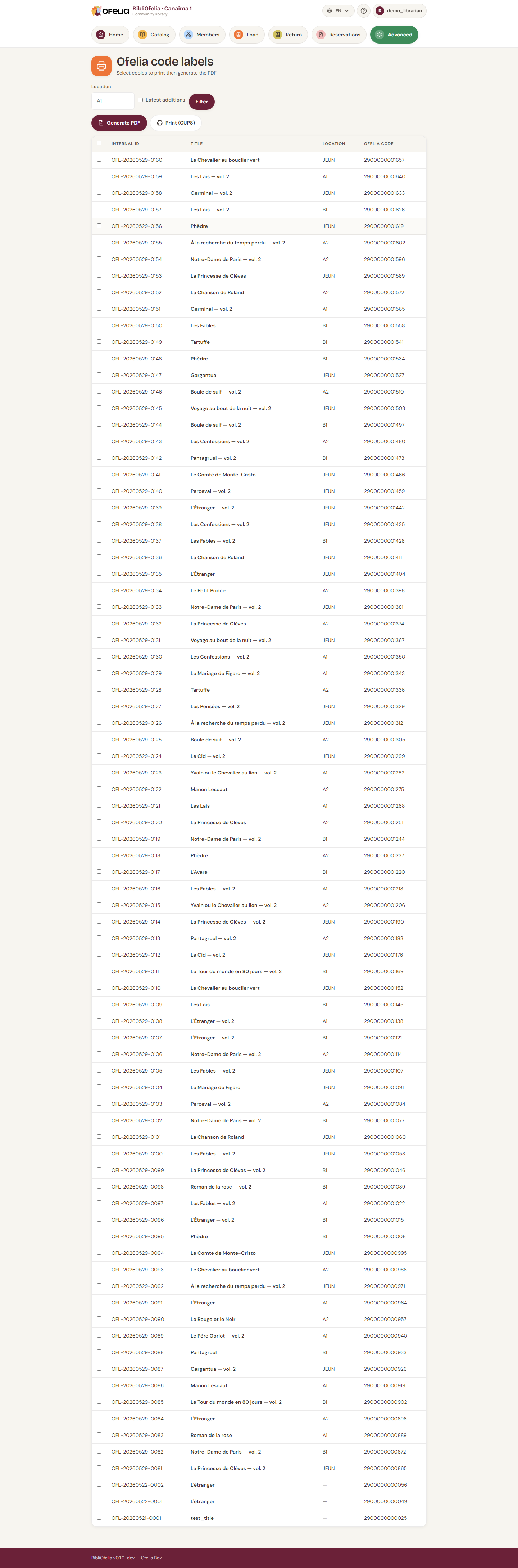
Choose the copies
The list shows all copies without a printed label. Filter and tick those to include in the PDF.
You can also print labels for already-printed copies (for example if a label is damaged) by disabling the "Not printed" filter.
Choose the language
As for cards, the language sets the wording on the label.
Generate the PDF
Click Generate PDF. Label format is 70 × 42 mm (5 per row, 14 per A4 sheet = 70 labels per page).
What a label contains
- Discreet OFELIA logo
- Book title (max 2 lines)
- Author(s) (max 2 lines)
- Internal code and EAN-13 barcode
- Location code (aisle)
Printing tips
- Use A4 sticky label sheets in 70 × 42 mm format (Avery L7163 or equivalent)
- Check alignment with a test print on plain paper first
- If you print many labels in series, plan a sticking step with several people: it's faster as a pair
Where to stick the label
Recommended convention:
- Hardcover books: on the back cover, bottom right
- Soft books: on the cover, bottom right
- Comics / Albums: on the back cover, in the least visible corner
Choose a constant placement for all your books: it speeds up scanning during inventory.
Printing on a tape printer (Brother QL-810W)
If your computer has a Brother QL-810W plugged in over USB with a 62 mm continuous tape, a second button appears: 62 mm tape (Brother QL). It prints one label at a time — no A4 sheet, no wasted paper.
- Tick the copies, then click 62 mm tape (Brother QL).
- The PDF opens in a new tab. Start printing (Ctrl+P, or the viewer's print button).
- In the dialog: Brother QL-810W printer, 62 mm paper, portrait orientation, 100 % scale (never "fit to page").
Each label prints on its own page: the printer cuts between them.
Each label is 62 × 35 mm: logo and library name on top, a two-line title, the author in italics, the barcode, then the Ofelia code and shelf code at the bottom.
Labels print in black only
The red of the two-colour tape (DK-22251) is kept for member cards. On a label the barcode must stay black: a red bar can no longer be read by the scanner.
Spine labels
A spine label carries one thing only: the book's classification code, in very large type. Stuck on the spine, it can be read a metre away from the shelf and lets you file a book without pulling it out.
On the Labels page, select your copies then click Spine labels. Same tape, same format as book labels (62 × 35 mm, one label per page).
The text is centred and its size adjusts on its own: PER fills the label,
RO FI ADO spreads over two lines.
|--------------------------|
|          RO FI           |
|           ADO            |
|--------------------------|
The classification code has to be filled in first
The code is set on the classification, not on the book (see Classifications). A copy whose classification has no code is skipped when printing; if none has one, BibliOfelia tells you instead of producing an empty PDF.